


Just pick your modules, copy the code into your page or app — and you’re good to go!
Once the snippet is embedded in your web page, you’ll see the analysis results in your web browser’s console log and in real time on the host page (if “Enable graphical overlay examples” is selected).
First step: Get Your License Key and you’ll be redirected to this page with the Snippet Configurator enabled
Configuration FAQ
What’s the fastest way to generate a working snippet?
Once you’ve obtained your license key, the Configurator will appear on this page. You can then use it to select modules and generate a ready-to-paste snippet that loads and starts the SDK in two <script> tags.
Where should I place the script tags?
Place them at the beginning of the <body>: one tag loads the SDK, the next initializes modules and calls start().
Do I need HTTPS for the camera? Does localhost work?
Yes—browsers require HTTPS for camera access. Exception: http://localhost is allowed for local development. If you use a private IP or public domain, enable SSL. ai-sdk.morphcast.com
How do I choose modules (e.g., emotions) and what do they emit?
In the configurator, select modules; your snippet will include .addModule(...) calls. Each module fires its own event (e.g., FACE_EMOTION.eventName). You can also subscribe to one combined event via EVENT_BARRIER. ai-sdk.morphcast.com
How do I start and stop the engine programmatically?CY.loader().load().then(({ start, stop }) => start()); Keep a reference to stop if you need to pause the analysis later. ai-sdk.morphcast.com
What is EVENT_BARRIER and why use it?
It emits one synchronized payload per frame that bundles outputs from all enabled modules (e.g., detector, pose, emotion). Subscribing to it simplifies your code. ai-sdk.morphcast.com
What is the Data Aggregator for?
The DATA_AGGREGATOR module consumes EVENT_BARRIER and rolls up data in time windows (e.g., compute MIN, MAX, AVG, LAST every N ms). Configure periods with options like initialWaitMs and periodMs. Use it when you want smoothed, lower-frequency metrics to ship to your backend or dashboards. ai-sdk.morphcast.com
What are sensible defaults for performance and smoothing?
The SDK fires events about ~10 fps on mobile and up to ~30 fps on desktop. Many modules expose a smoothness parameter (set it to 0 for raw, higher values for smoother/slower signals). ai-sdk.morphcast.com
Why do I see “You cannot load this SDK from a local file system”?
Open your HTML through a local web server (or deploy to a server). Loading via file:// is blocked and can break camera and other features. ai-sdk.morphcast.com
Can I lazy-load the SDK?
Yes. Instead of a static <script> tag, you can inject it with document.createElement("script") to defer download until needed. ai-sdk.morphcast.com
Can I feed a video file/URL instead of the camera? (CORS gotchas)
Yes, but if you load a remote video, ensure the server returns Access-Control-Allow-Origin so the canvas isn’t tainted. Otherwise, serve the video via a CORS-enabled server/proxy. ai-sdk.morphcast.com
How do I visualize or download statistics later on?
Enable Statistics Service in the snippet configurator and click on the button View Statistic Dashboard to view charts and export PDF, CSV/JSON. (Great together with the Data Aggregator.).
Can I restrict my license key to specific domains?
Yes. Each license key can be associated with a whitelist of authorized domains — a list of websites where the key is allowed to function. If no whitelist is defined, the license key will be enabled on any domain. To define or modify the whitelist of authorized domains, go to your Dashboard and open the Manager Account section of your Emotion AI JS Engine license key. From there, you can add, remove, or update the allowed domains.
I want to know more…
If you did not find everything you need in this “How to Configure the Emotion-AI-Engine-SDK with Examples” page, over time, we’ve added many advanced topics to our documentation, built on hundreds of real interactions with customers who use our library. These sections capture both the valuable experience gained from their projects and the ongoing improvements we’ve made to the product. We recommend browsing these topics to get a broad overview of the capabilities and possibilities offered by our library.
Other FAQs:
Minimal Example (only Ekman Emotions)
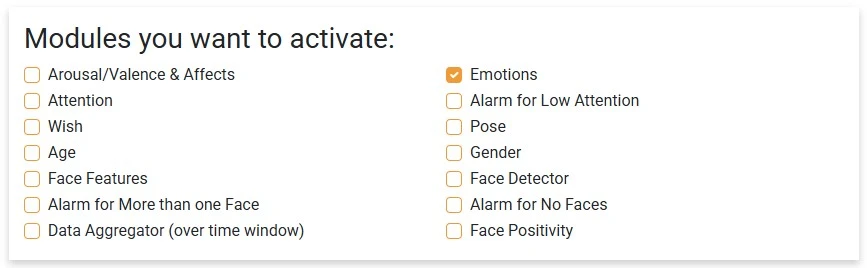 In this section you can activate the modules you need, for example the Emotions module. | <body> <script src=”https://ai-sdk.morphcast.com/v1.16/ai-sdk.js”></script> <script> CY.loader() .licenseKey(“YourLicenseKey“) .addModule(CY.modules().FACE_EMOTION.name, {smoothness: 0.40}) .load() .then(({ start, stop }) => start()); window.addEventListener(CY.modules().EVENT_BARRIER.eventName, (evt) => { console.log(‘EVENT_BARRIER result’, evt.detail); }); </script> <!– your body part –> </body> |
Example with Russel Affects
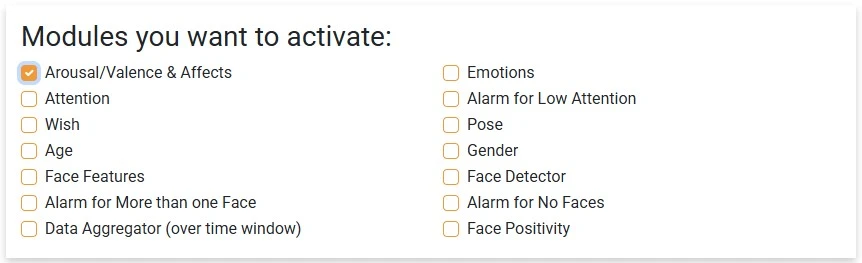 In this section you can activate the modules you need, for example the Arousal/Valence & Affects module. | <body> <script src=”https://ai-sdk.morphcast.com/v1.16/ai-sdk.js”></script> <script> CY.loader() .licenseKey(“YourLicenseKey“) .addModule(CY.modules().FACE_AROUSAL_VALENCE.name, {smoothness: 0.70}) .load() .then(({ start, stop }) => start()); window.addEventListener(CY.modules().EVENT_BARRIER.eventName, (evt) => { console.log(‘EVENT_BARRIER result’, evt.detail); }); </script> <!– your body part –> </body> |
Didn’t find what you needed? Share general feedback here and we’ll consider adding it to this page: feedback.